Git insturctions
Configuring GIT
You only need to configure the following git version control settings once. You must have git installed on your machine to do this.
Starting Git bash
We will start Git Bash: In WIndows Explorer select your folder and click it with mouse left button and select Open Git Bash Here --> Git Bash command line tool will be opened to that folder.
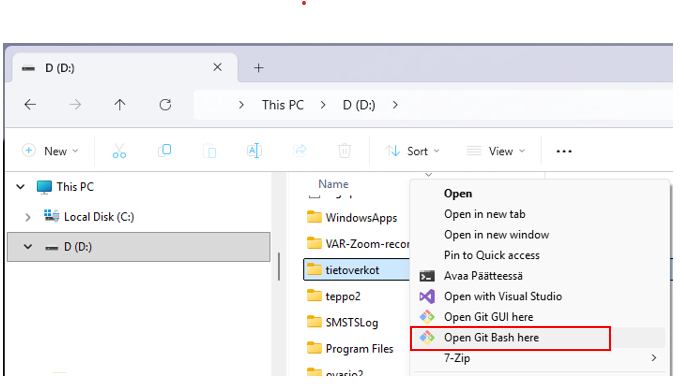
Configure your login information
If you want to use git tools, you need to configure your login information once.
The steps are
1. open git bash
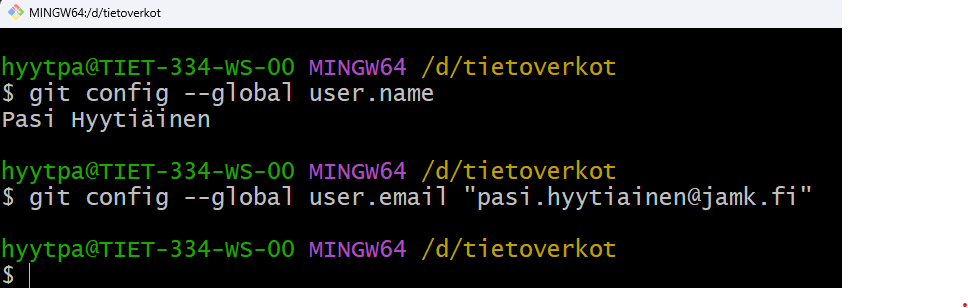
2. give command to configure your name

git config --global user.name "Firstname Surname"

3. give command to configure your email

git config --global user.email "your.email@student.jamk.fi"
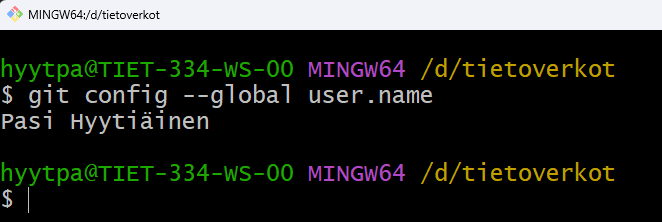
Test that the configuration is saved like giving a command
git config --global user.name
Now you can start using git.
Create a new git project as described in exercise E01 Making Your First Virtual Machine
Assign teachers to git repo
Add permissions for the teacher to your project/repo as follows. Login to jamk gitlab
1. On the left menu select Manage->Members
2. Add your teacher name or email address to to gitlab member field
Note: gitlab should know all teachers, so select the correct one!
3. In Choose a role permission select Developer
4. Define Access expiration date to be like the end of June.
5. Press Invite -button to complete.
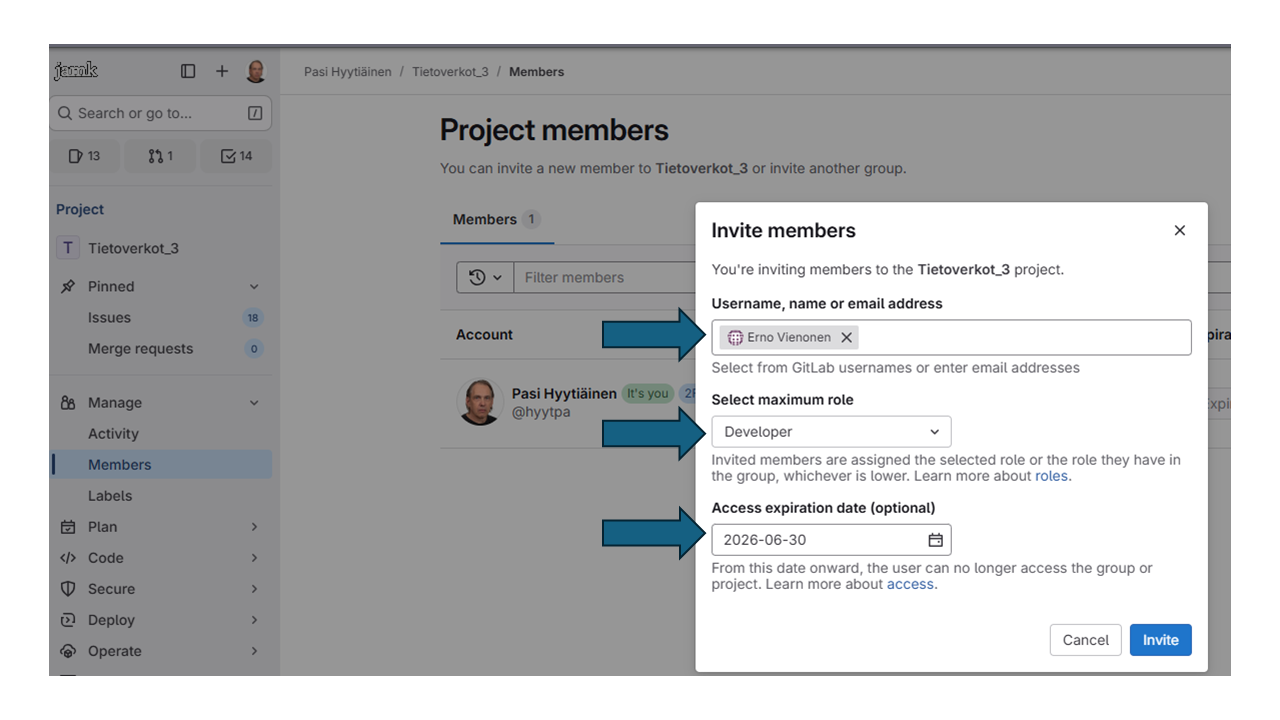
Cloning a repo
To start working with your files, you need to clone the files from the git server to your local machine. Do it once.
You will be committing your assignments to local repo and then pushing the changes to git repo on the server.
Note! You need to have labranet account for using jamk gitlab
Note! You do cloning only once to your local computer.
Cloning remote git repo
The cloning will be done like
1. Go to https://gitlab.labranet.jamk.fi, open the the repo you want to move to your local drive and select Clone action
2. A menu will be shown and you select "Clone with HTTPS"
Note! In this documentation we will use"Clone with HTTPS"
3. Copy the "Clone with HTTPS" field content to your clipboard
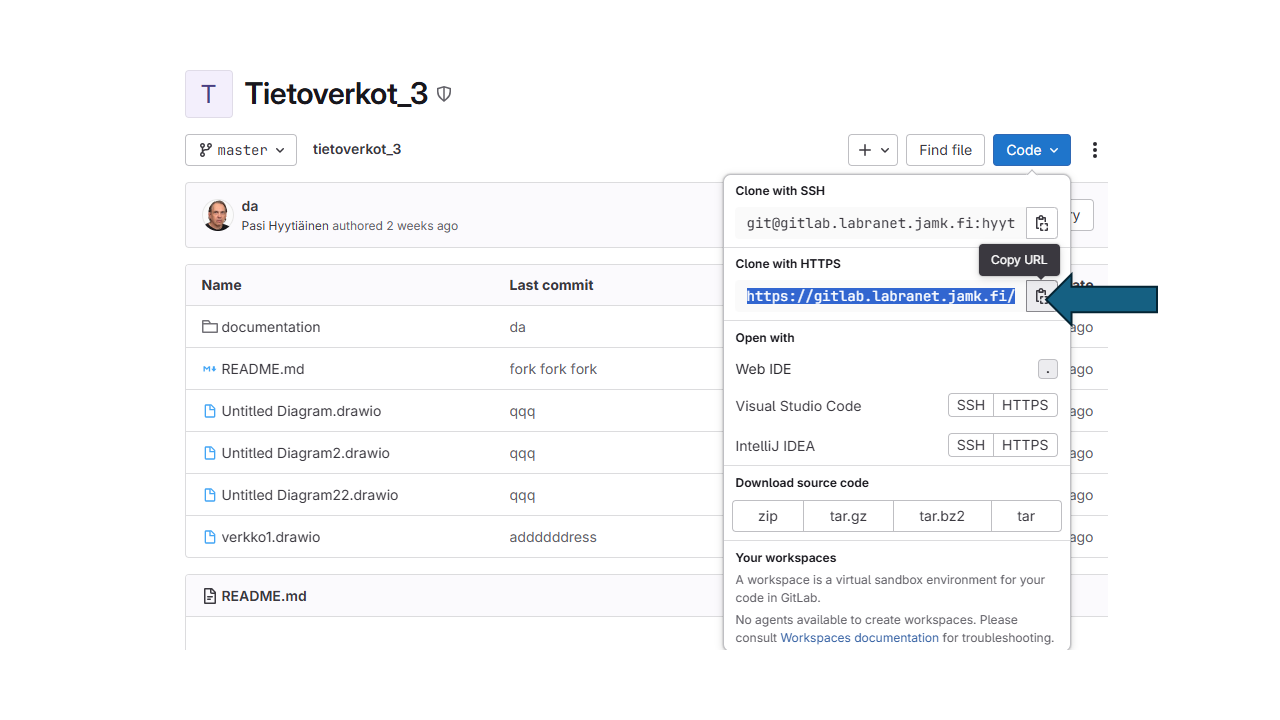
Create a new folder on your computer in a location of your choice.
We recommend creating a folder called networks under your home directory.
In this example I'm using "D:\tietoverkot\"

4. Select the created folder with mouse right click and select "Git Bash Here".
Git bash will be opened to selected folder.

5. Clone the git repo using git clone command.
Write git clone with the copied URL.
You can paste the URL in git bash either by right-clicking or by entering the command Shift+Insert on the keyboard.

**Note!** Do not use the Ctrl+V key combination in git bash, because in bash Ctrl is a special character that is included in the pasted text as invisible. Note that in the example below, the username must be your own labranet username.

6.The first time you clone, git will ask for a username and password. Enter your labranet username and password.
Note: Be careful to enter them correctly, as git does not give you a second chance!
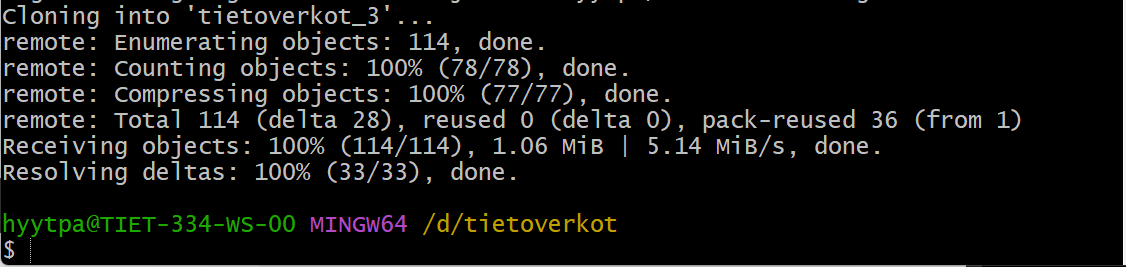
7. As I cloned a project named **Tietoverkot_3**, there should be similar folder.
8. You can check that cloning was done entering a command ls -a in git bash
9. The folder **Tietoverkot_3** should be shown in blue like in followin picture
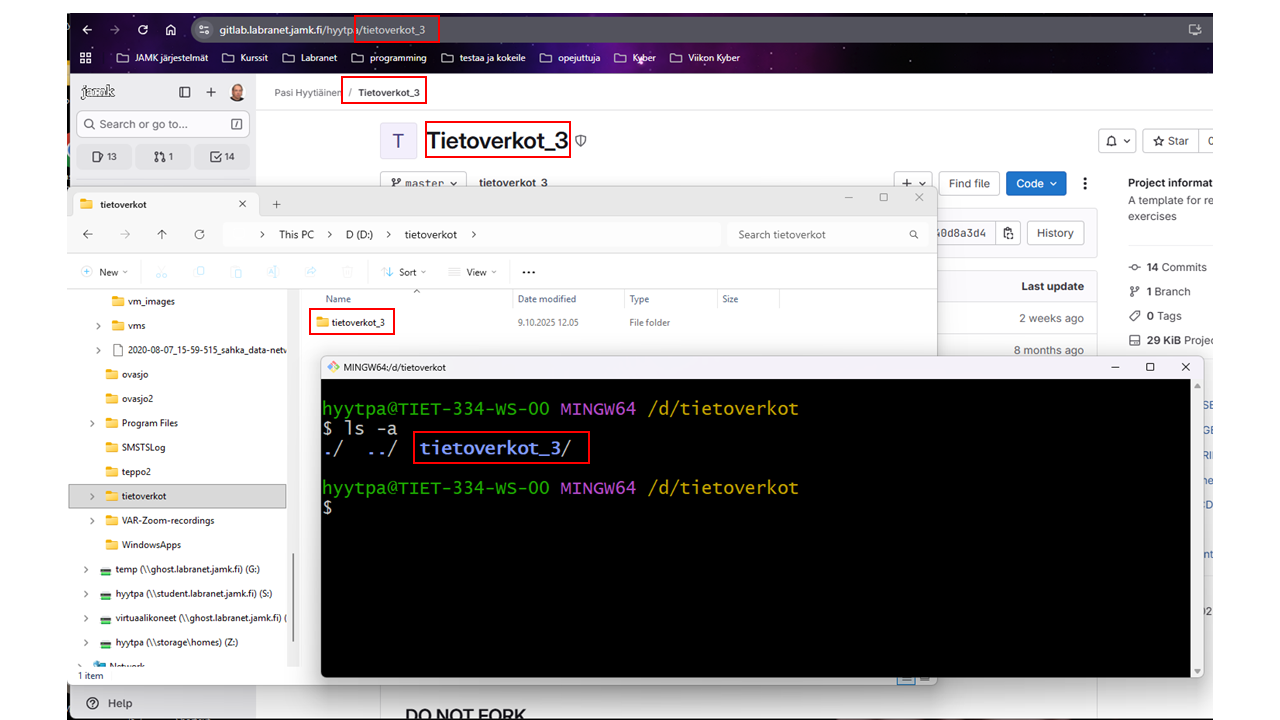
Now the local folder structure should look like:
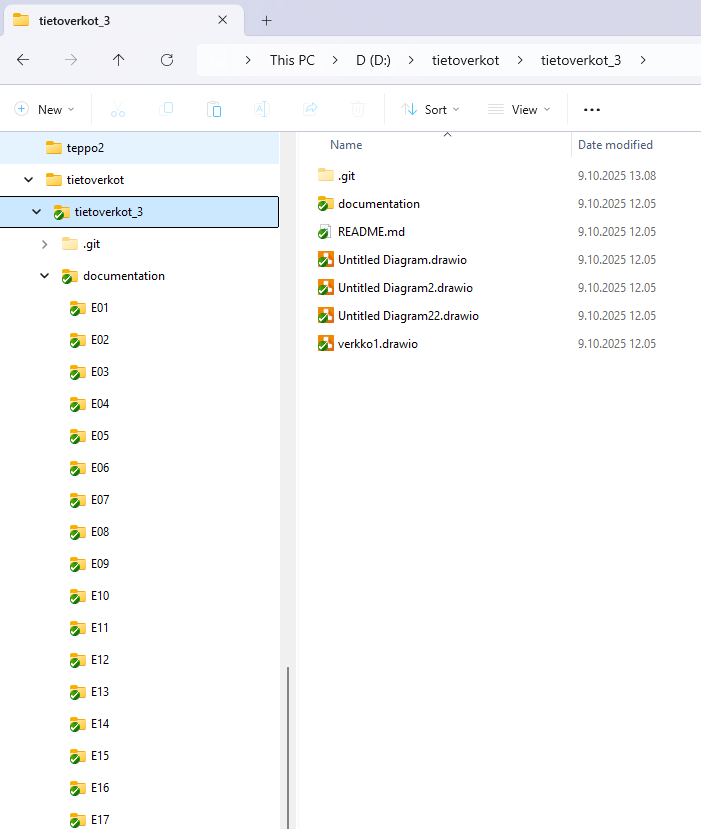
Working with local repo
Choosing the right directory for the git bash command line tool
When I want to work with my own repo tietoverkot_3 on my own computer, I need to make sure that git bash is in the right directory.
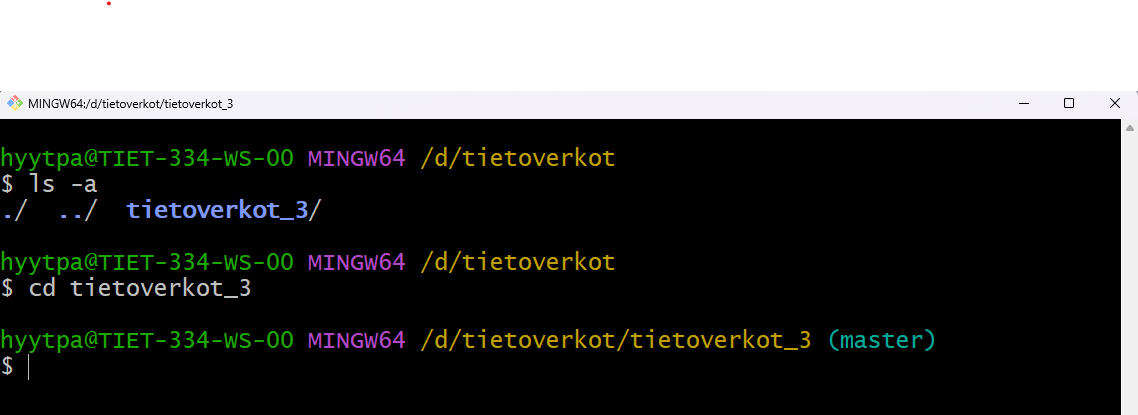
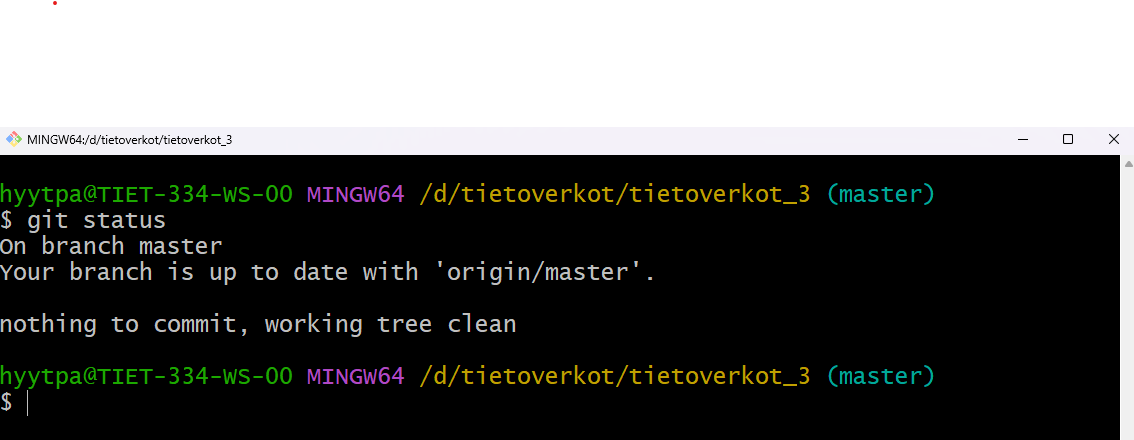
Now I can use git commands.
Choosing correct working directory for Visual Studio Code
When I want to work with Visual Studio Code, I need to pin the root directory of the Visual Studio the tietoverkot_3 directory as well.
I will use Open Folder command to open up the correct directory.
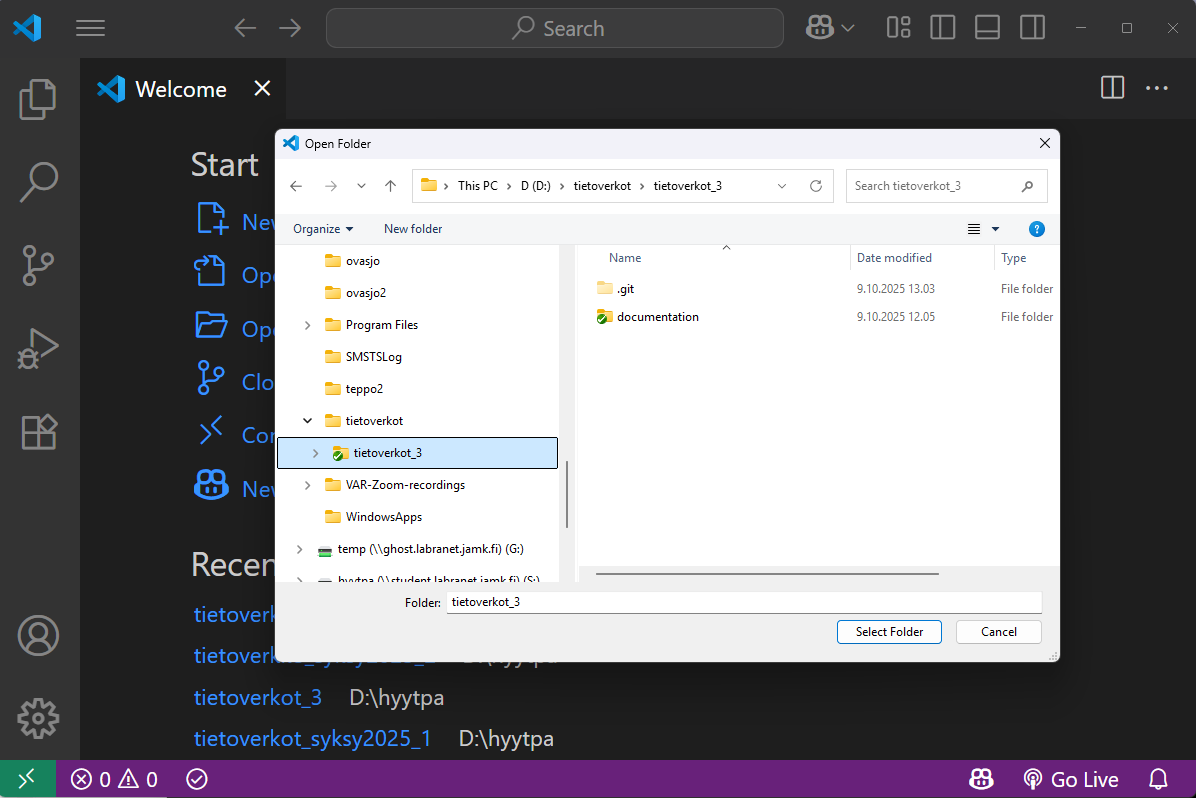
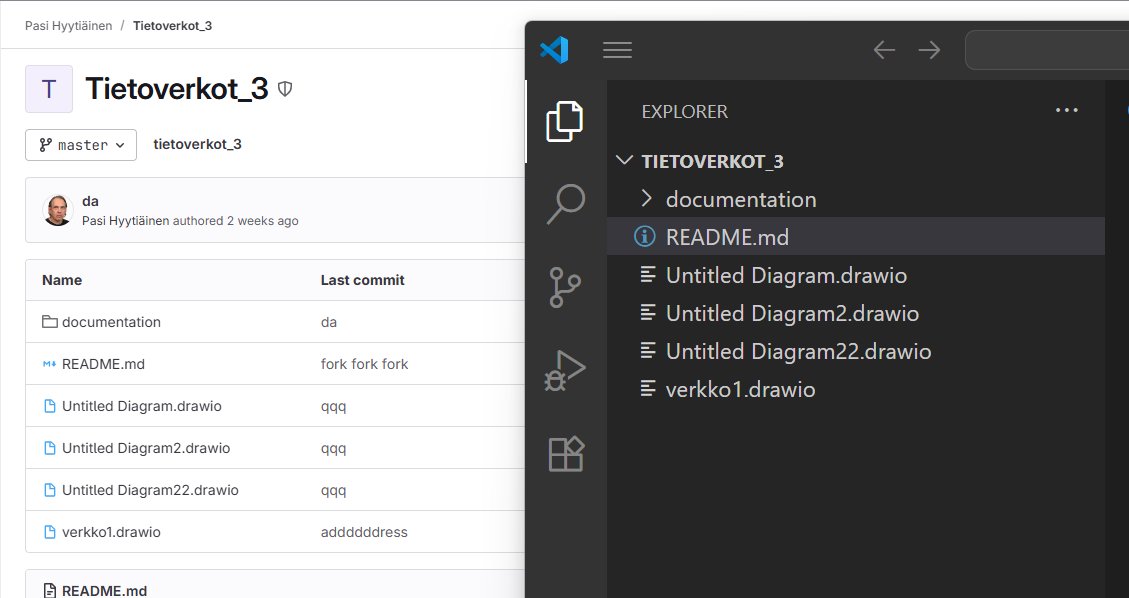
Now the Visual Studio Code folder and files tree looks like the same as in remote git server.